Passkeys let you sign in to a supported website or app using a credential unlocked on your device, often with a fingerprint, face scan or PIN. They can make everyday sign-in simpler. Before replacing your phone, check where your passkeys are saved and how you can regain access if that phone is unavailable.
Ask one practical question before you erase anything: can you sign in to your important accounts without relying on the phone you are about to trade in? This guide explains what to check, using current guidance from passkey providers.
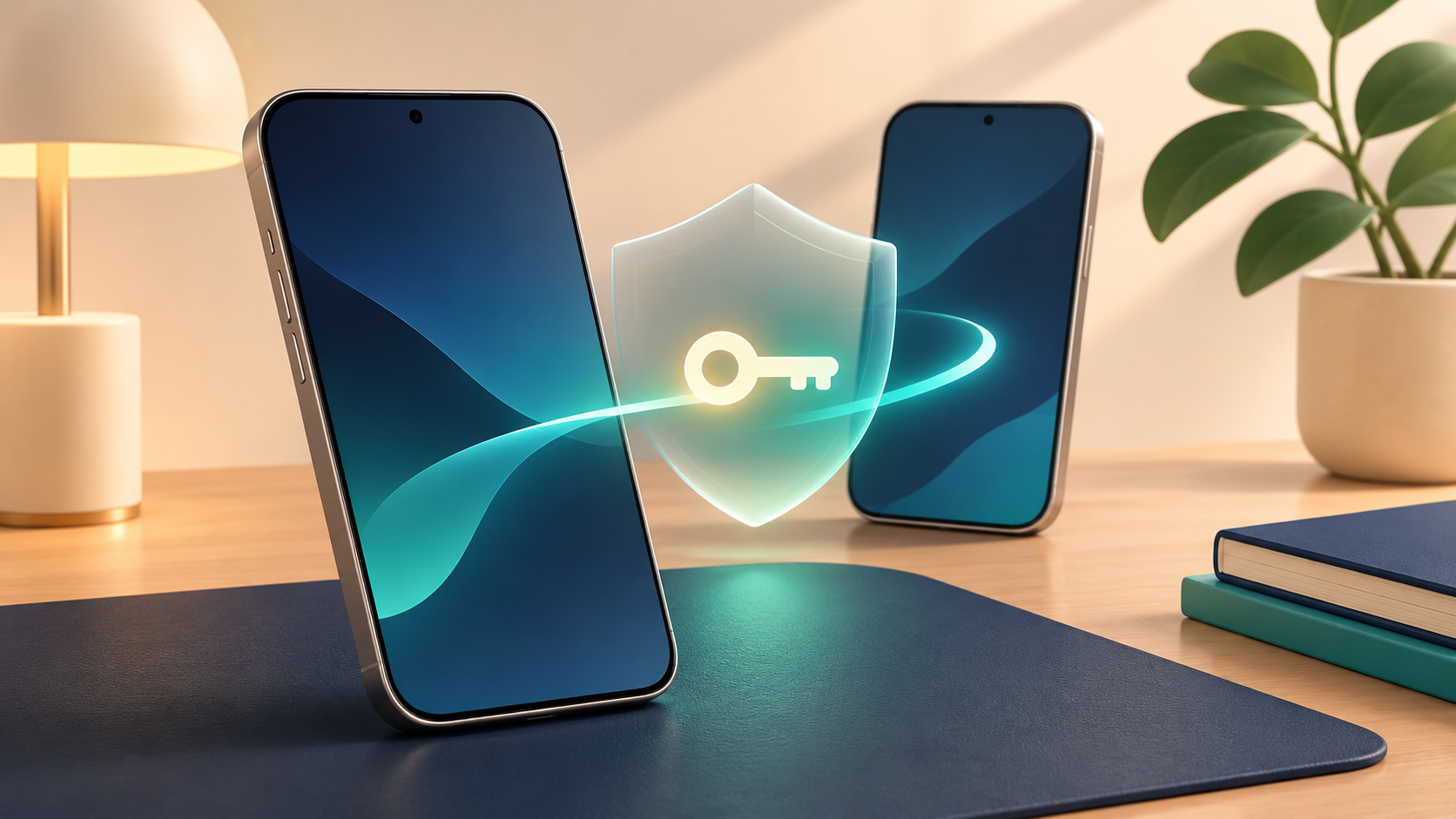
What are passkeys?
The FIDO Alliance describes passkeys as credentials built from cryptographic key pairs and designed to resist phishing. Instead of typing a reusable website password, you approve a sign-in through your device or authenticator. The credential is tied to the intended service, helping prevent a fake login page from collecting it like a typed password.
A passkey is not your fingerprint. Your fingerprint or face can authorize its use locally. Google says biometric data used to unlock a passkey stays on your device and is not shared with Google.
Synced and device-bound passkeys differ
A passkey may be saved in a provider that syncs it across your approved devices, or it may be tied to one device or authenticator. A synced passkey can appear on a replacement phone when you set up the same provider and account. A device-bound credential needs another access or recovery plan if that authenticator is lost.
For example, Google Password Manager says passkeys sync with your Google Account when you use the same account on supported Chrome or Android devices. Apple says iCloud Keychain keeps passkeys available across approved devices, with approval and recovery steps. Check the manager that actually holds each passkey; seeing one on your old phone does not prove it will move to another provider or operating system.
FIDO also supports cross-device sign-in, such as using a phone to approve a sign-in on a computer with a QR code. A hardware security key can be another option where the service supports it, but enroll and test it before you need it.
What to check on Apple devices
Apple’s current iCloud Keychain guide explains how passwords and passkeys sync across approved devices and what account recovery can require. Before switching phones, confirm Passwords & Keychain sync is enabled and that you can approve the replacement device. Read Apple’s current recovery instructions rather than assuming cloud sync removes every risk of losing access.
Five checks before erasing your old phone
- List important accounts. Start with your main email and accounts you need for work or everyday services. Note which use passkeys and which manager stores them. Do not put passwords or recovery codes in this list.
- Identify the provider. Find each passkey in your password or passkey manager. Check that the provider supports your replacement phone and review its transfer or recovery steps.
- Review account recovery. Visit each service’s security settings directly. Check that recovery information is current and any backup method you plan to use is actually enrolled.
- Test the new phone. Before resetting or trading in the old device, complete a fresh sign-in to important accounts from the replacement. An already-open session does not prove you can sign in again later.
- Retire the old device carefully. After checking access, follow the phone maker’s erase instructions and review the service’s list of registered devices and credentials. Remove obsolete credentials according to that service’s guidance.
This is a planning checklist, not a guarantee that every provider handles transfers the same way. Work accounts may have administrator rules, so check those before changing their sign-in setup.
Should you create a passkey on a shared computer?
Use care with any device another person can unlock. Google recommends creating passkeys only on devices you personally own and use. Someone who can unlock a device with your passkey may be able to access the associated account.
On a temporary computer, see whether the service lets you sign in with your own phone or security key instead. Avoid leaving a passkey on a public or borrowed device.
Quick questions
Does adding a passkey delete my password?
It depends on the service. Google says adding a passkey to a Google Account does not remove its existing authentication or recovery factors, though passkeys can change the sign-in experience. Check each service’s settings before assuming a password or recovery method has been removed.
Will every passkey move automatically to a new phone?
No single transfer rule applies to every passkey. It depends on where the credential is stored, whether it syncs, and which providers the new phone supports. Verify the provider’s steps and test a new sign-in before erasing the old device.
What should I check first?
Choose one important account and identify its passkey provider and recovery options. Repeat that check for the rest before you erase your phone. For another practical compatibility checklist, see our Wi-Fi 7 MLO guide.
Leave a Reply